
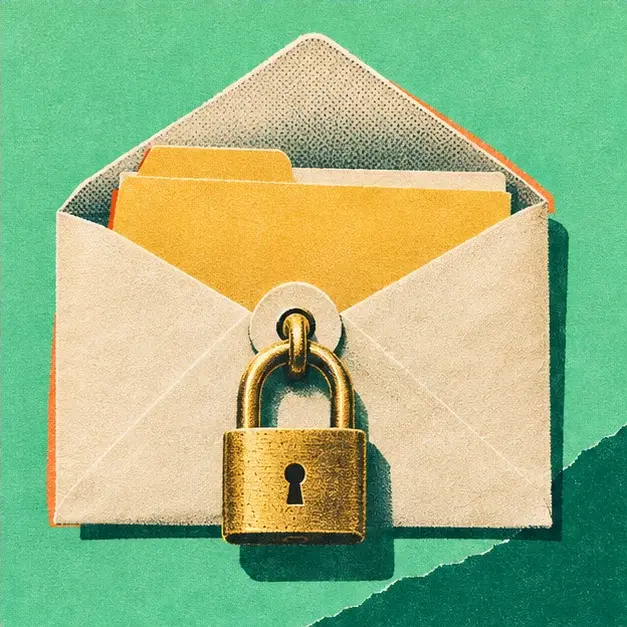
If you only need to protect a message in transit, check the mail service’s transport encryption. If the recipient must still be unable to print or forward a downloaded file, choose a method that enforces those restrictions for that file type and client.
Attachment protection
Choose protection for the task
- 01
Verify
Confirm recipient and file sensitivity
- 02
Select
Email encryption, link or protected file
- 03
Check
Account, file type and recipient access
- 04
Send
Record the method and response owner
Email encryption and control of a downloaded file differ.
Steps are a planning guide, not a claim of a tested product configuration.Is it safe to send sensitive email attachments?
Use an approved account, verify the recipient and check what happens after download. For example, if a supplier only needs to read a price list until Friday, a recipient-specific link with an expiry may be enough. If they can download an unrestricted PDF, expiring the link on Friday will still leave them with that copy. Use the external sharing checklist to record that decision.
Compare message encryption, governed links and protected attachments
| Method | What it can help protect | Question to test |
|---|---|---|
| Transport encryption | The connection between participating mail systems | Does the recipient's service support the required transport security? |
| Message encryption | Message content and attachments under the chosen mail service's rules | Who can decrypt it and what happens in the recipient's client? |
| Governed link | Access to material through a controlled service | Can access be changed, and what happens to downloaded copies? |
| Protected attachment | Usage of a protected file in supported environments | Which formats, clients, offline conditions and actions are supported? |
No method is universally safest. Encryption in transit is valuable but does not automatically protect an unencrypted copy after download. A link can expire without deleting an existing copy. Ask who holds the keys, where content is decrypted and whether the method meets the business requirement.
For Microsoft 365 work or school accounts
A work or school tenant can have Microsoft Purview Message Encryption, information rights management and sensitivity labels configured by its administrator. The available option, licensing and recipient experience depend on the organisation and the Outlook client. Microsoft distinguishes work or school accounts from Personal or Family subscriptions in its Outlook security guidance.
Before sending a real attachment, ask your administrator which labels or encryption options apply, whether an external recipient uses a portal or a supported client, and what happens to the specific file after download. Microsoft documents that eligible work or school deployments can enable PDF attachment encryption, so do not apply the Personal or Family PDF example below to every enterprise tenant. Check the current Message Encryption FAQ and your tenant configuration.
Outlook options for Microsoft 365 Personal or Family accounts
Microsoft documents encryption options for Outlook.com and new Outlook for Windows when a qualifying Microsoft 365 Personal or Family subscription is available. Business accounts can have different licensing, administrator settings and interfaces. Check your organisation's guidance before applying these steps.
For a supported Personal or Family account, Microsoft's documented path is:
- Start a new message and select the Options ribbon, then Encrypt.
- Select Encrypt or Do Not Forward according to the restrictions needed.
- Attach a non-sensitive test file and address it to a test recipient.
- Send the message and ask the recipient to open it using their normal account or the offered passcode route.
- Record whether the recipient can forward the message and what happens to each downloaded file type.
Microsoft states that Do Not Forward protects supported Office attachments after download, while other file types such as PDFs and images may be downloaded without encryption. With Encrypt, recipient download behaviour also varies by client. These are documented service behaviours, not tests of your account. Confirm the current Microsoft guidance for Personal or Family accounts and test your configuration.
What can Gmail options protect, and where are the limits?
Gmail can use TLS for transport when the receiving service supports it. Confidential mode can add expiry and access-removal controls, but it is a different choice from client-side encryption.
For the desktop Gmail experience, Google's documented confidential-mode flow is:
- Compose a message and select the confidential-mode control at the bottom of the compose window.
- Set an expiry and choose whether the recipient must use an SMS passcode; use the recipient's phone number if one is required.
- Save the settings, add a non-sensitive test attachment and send it to a test recipient.
- Ask the recipient to open the message and document the authentication and attachment experience.
- If testing early access removal, open the sent confidential message and select Remove access.
The expiry and passcode settings apply to access to the message and attachments. Google says confidential mode disables the normal forwarding, copying, printing and downloading controls, while recipients may still take screenshots or photographs, and malicious software may allow copying or downloading. SMS passcodes are available only for supported phone-number regions. Check Google's current confidential-mode guidance.
Eligible Google Workspace organisations may also configure client-side encryption, with requirements that vary by edition and recipient workflow. Confirm account eligibility, administrator setup, recipient access and current limitations in Google's client-side encryption guidance. These steps are based on vendor documentation; behaviour varies by account and configuration.
What should you check for each recipient and file type?
| Check | Why it changes the decision | Record |
|---|---|---|
| Account and licence | Consumer and work accounts may expose different controls | Account type, client and available setting |
| Recipient identity | An external recipient may use a portal or passcode | How the recipient proves access and who helps if it fails |
| File type | Word, PDF and other formats may behave differently after download | The actual attachment type and observed result |
| Content location | A cloud-sharing link and a file attached to a message can follow different rules | Whether the recipient receives a link or a file |
| After-send control | Expiry, revocation and deletion do not have identical effects | What remains accessible and what is outside the sender's control |
If a protected email contains a cloud attachment or link, confirm the sharing policy on the underlying file separately. Do not assume that the email's protection setting automatically applies the same restrictions to the linked document.
Test forwarding, downloading and expiry before sending
Use a non-sensitive document of the same type as the intended attachment. Check how the recipient authenticates, whether forwarding is allowed, what downloads, what happens when access expires and what evidence is available to the sender. Record the account, client, file type, settings and observed results. If the outcome does not meet policy, change the method or seek an approved exception before sending.
What should you do after a mistaken send or access failure?
Follow your organisation's incident process promptly. Depending on the method, you may be able to remove link access or change a supported file policy; message recall, revocation and deletion are different actions and none should be assumed to erase every copy. Verify the recipient through a trusted channel and contact the responsible administrator if legitimate access fails. Preserve relevant records for investigation.
Secure attachment pre-send checklist
- Confirm the file, classification and business purpose.
- Verify the recipient and use an approved account and method.
- Select the minimum rights and an appropriate expiry where supported.
- Test the recipient experience, download behaviour and evidence with a non-sensitive file.
- Record the owner and a route for access changes or incidents.
For an enterprise workflow, the Vaultize Share and email and attachment protection pages describe policy-controlled email, attachments and forwarding visibility in supported configurations. Check the post-send attachment use case for an example workflow. Evaluate file-level controls with the DRM checklist.
Take it with you
Use the worksheet with your team.
Download a CSV checklist with suggested checks and blank fields for owners, results and evidence.
Download worksheet (CSV) →Next step
Bring your workflow into focus.
Discuss the files, recipients and controls your team needs to evaluate.
Talk to Vaultize →